Once an image has gone through the review process and is approved by a reviewer at Shutterstock, you do have the option of deleting the image. Perhaps you have a better version, made some colour adjustments, or for some other reason or another you no longer want the image in your portfolio. Never fear, you can delete the image yourself; no need to write in and ask Shutterstock to remove it for you.
⚠️ PLEASE NOTE! Whilst you can delete an image that is still pending review, don’t do it! I’ve found it really messes up the review process, especially if you want to resubmit the image at a later time. Best to let the image go through review, and once approved, then you can delete it. ⚠️
TO DELETE AN IMAGE IN YOUR SHUTTERSTOCK PORTFOLIO
- Log into your Shutterstock contributor account.
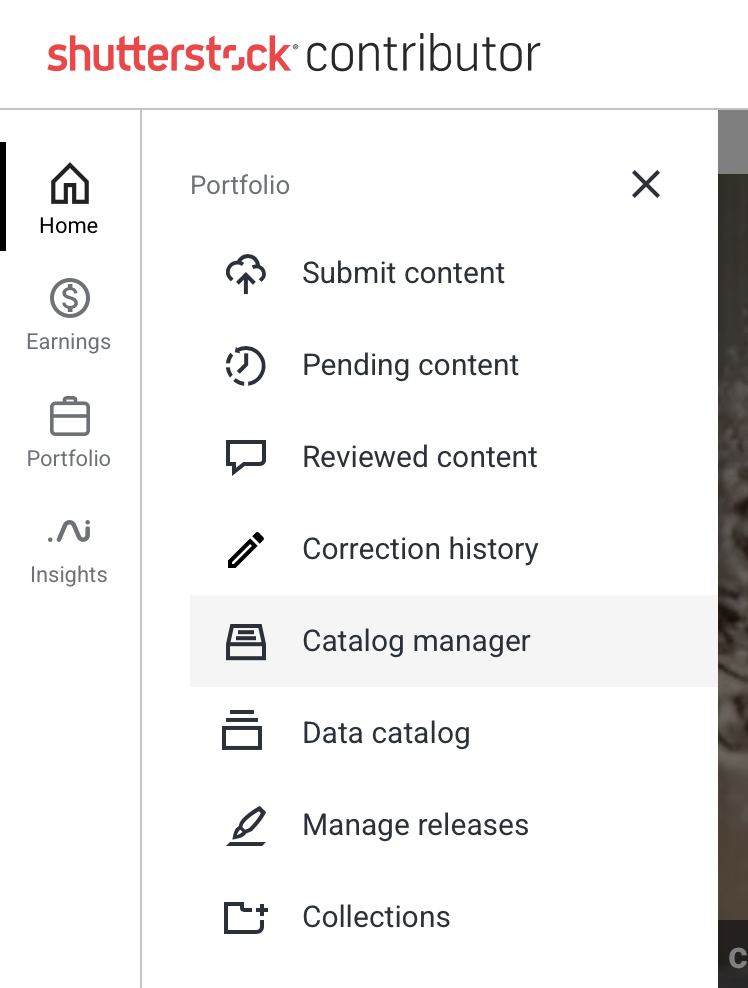
- On the left hand side, select Portfolio. A window will slide out. Select Catalog Manager.
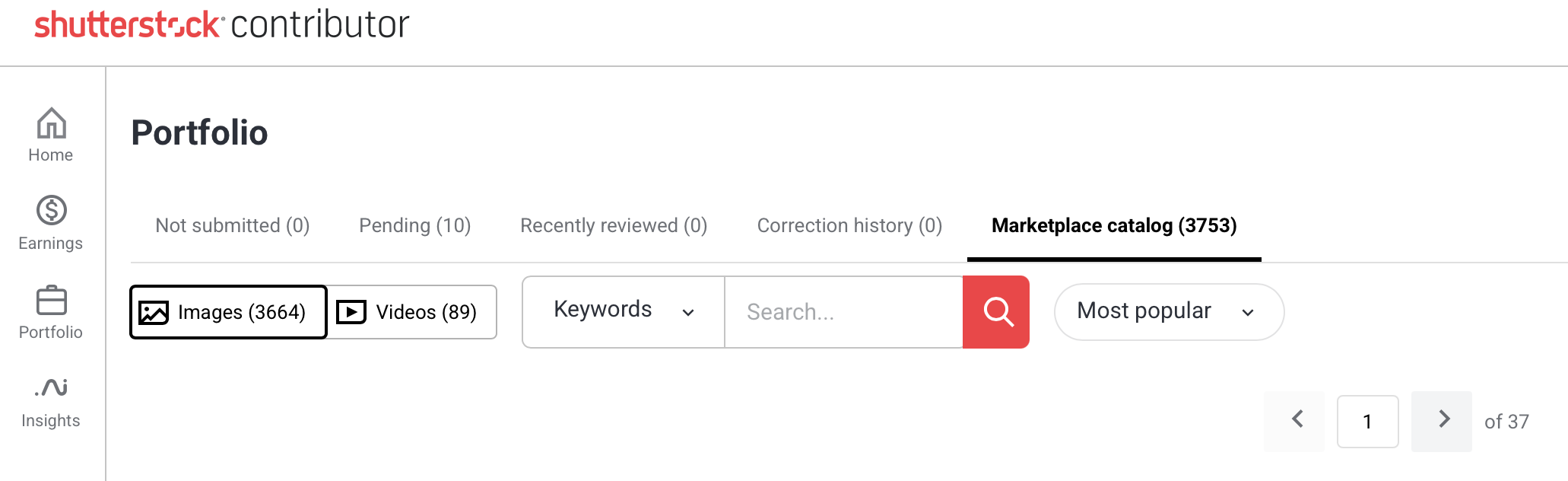
3. A page titled Portfolio comes up. There are several categories underneath the word Portfolio. Be sure you have selected Marketplace catalogue. You know it is selected because it is underlined and in bold.
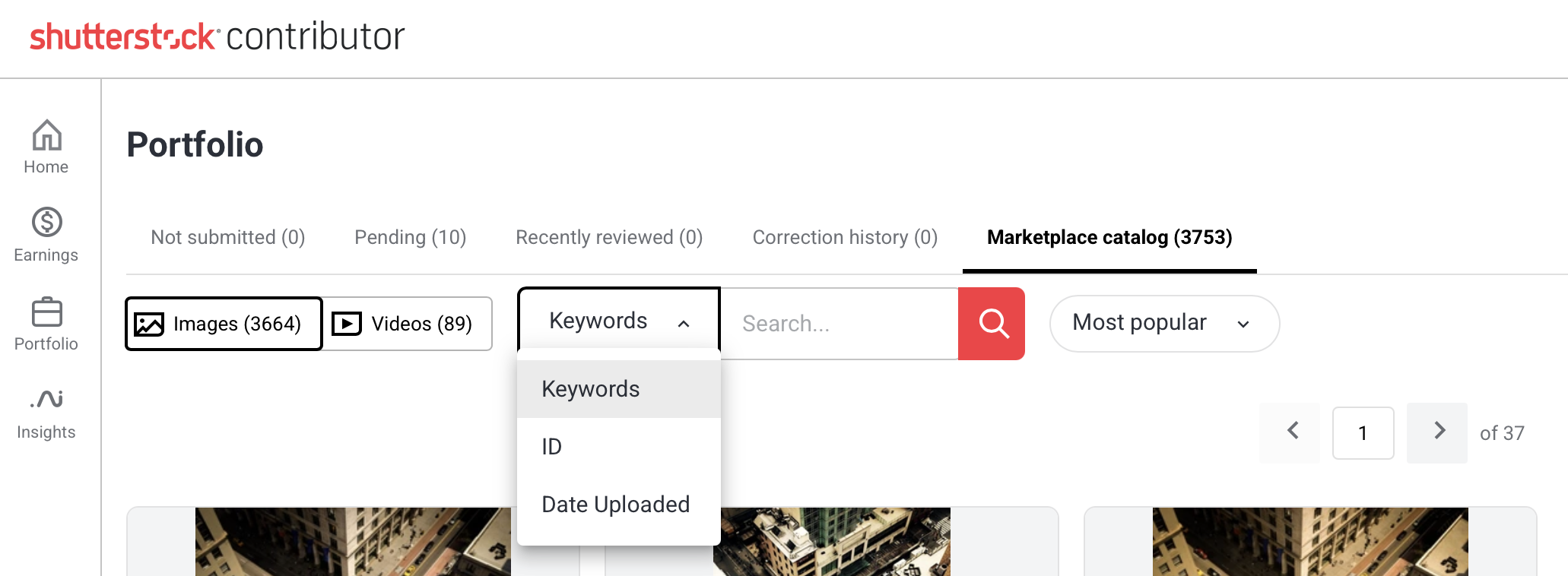
4. You can search for the image you wish to delete by keyword (default), date uploaded, or by image ID number. Click on the down arrow next to Keywords for these options. Then hit the red magnifying glass to search.
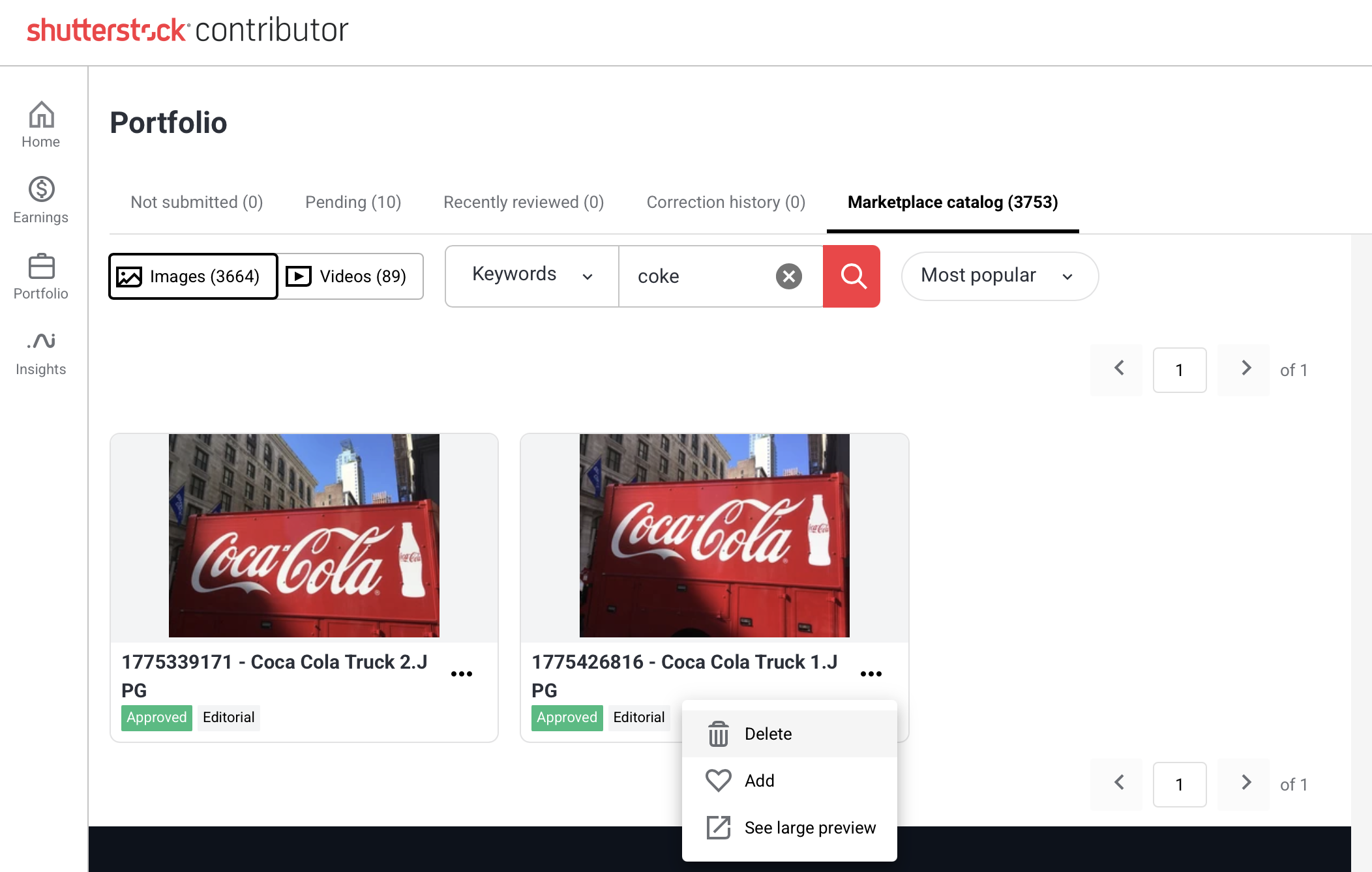
5. Once you’ve located the image you wish to delete, click on the three ellipses below the image thumbnail to bring up the menu options. Select delete.
7. A pop-up window will appear, asking if you really really want to delete the image. Hit delete to continue, or cancel to cancel the action.
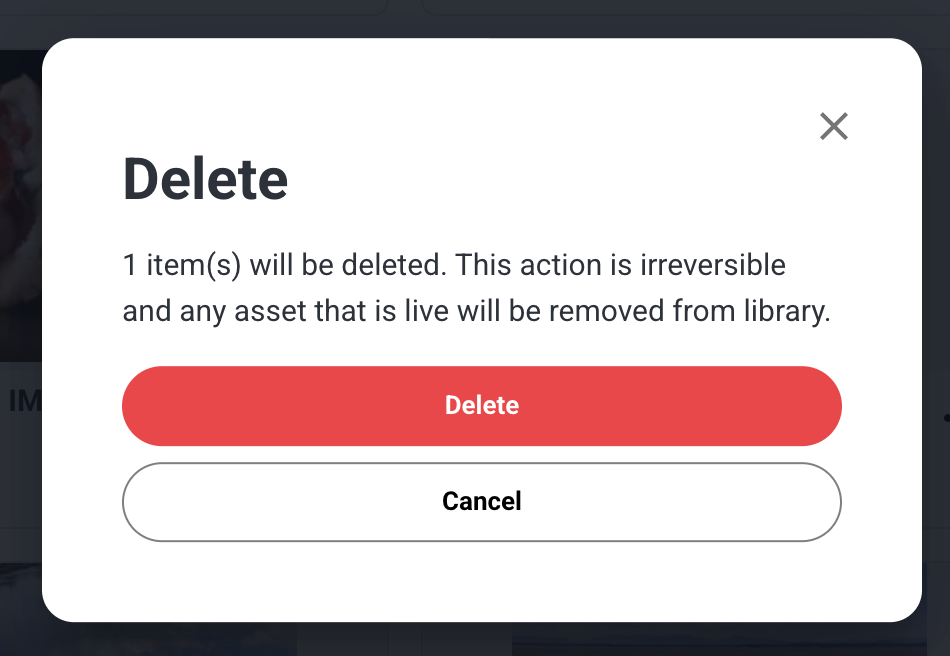
⚠️ PLEASE NOTE! Deleting an image cannot be undone. Once you hit delete, it’s gone forever! ⚠️